
Library
Scan existing image folders into Livebound without reorganising or rewriting source files.
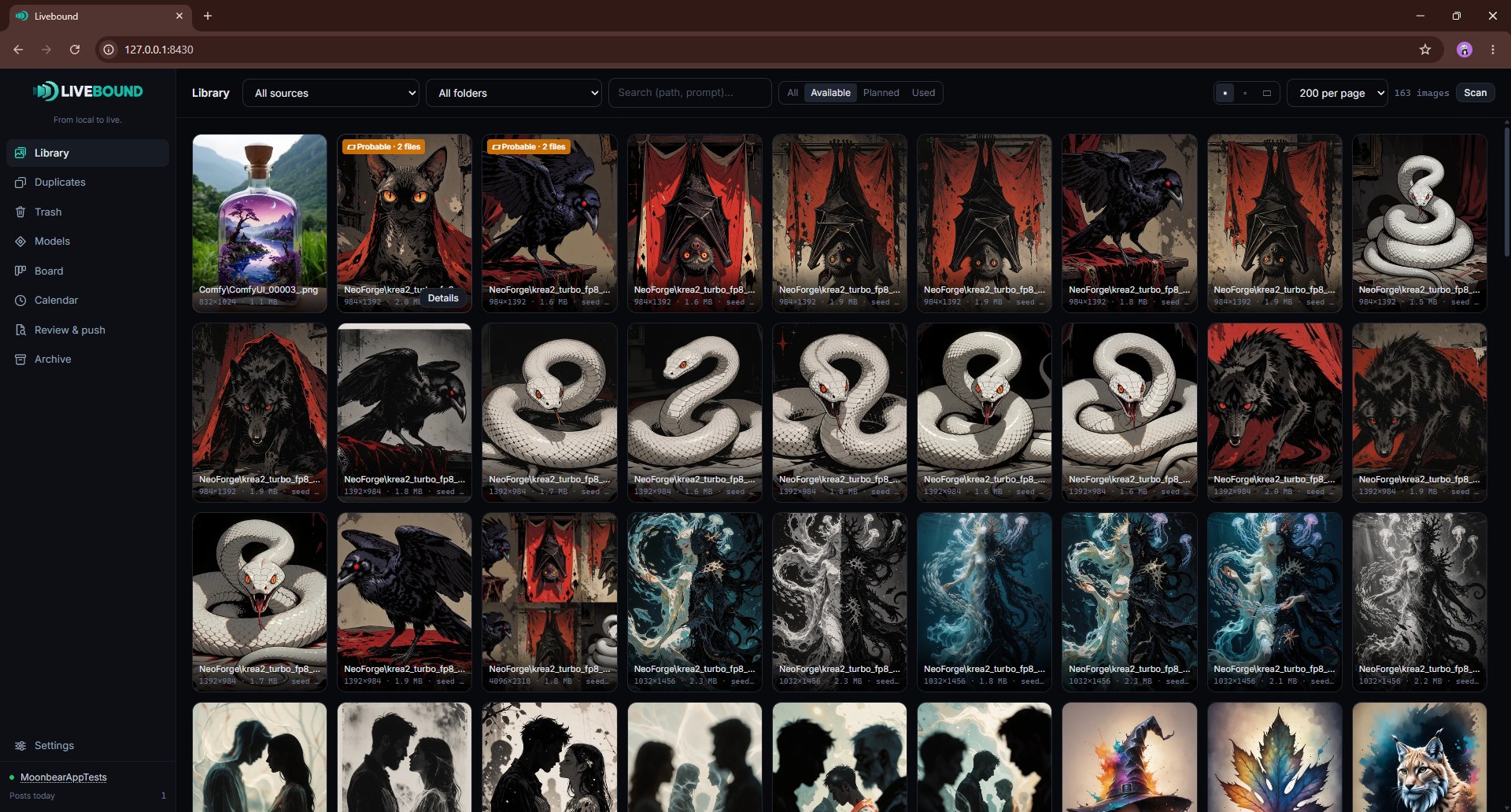
The Library is the starting point for local images.
Source folders
Add one or more image folders in Settings. Livebound scans them recursively and keeps the files where they are. The supported local image extensions are:
- PNG
- JPEG / JPG
- WebP
A source can also be set to Watch. Watched folders are rescanned every 15 minutes. Watching is off by default; it records new or changed images but leaves vanished entries until you start a manual scan. It does not move or delete source images.
What a scan records
For readable images, Livebound records local identity information, dimensions, thumbnails, available generation metadata, and information used for duplicate detection and later local/remote matching.
An unreadable file does not stop the whole folder scan. The scan continues and the problem is surfaced as part of the job result.
Search and filters
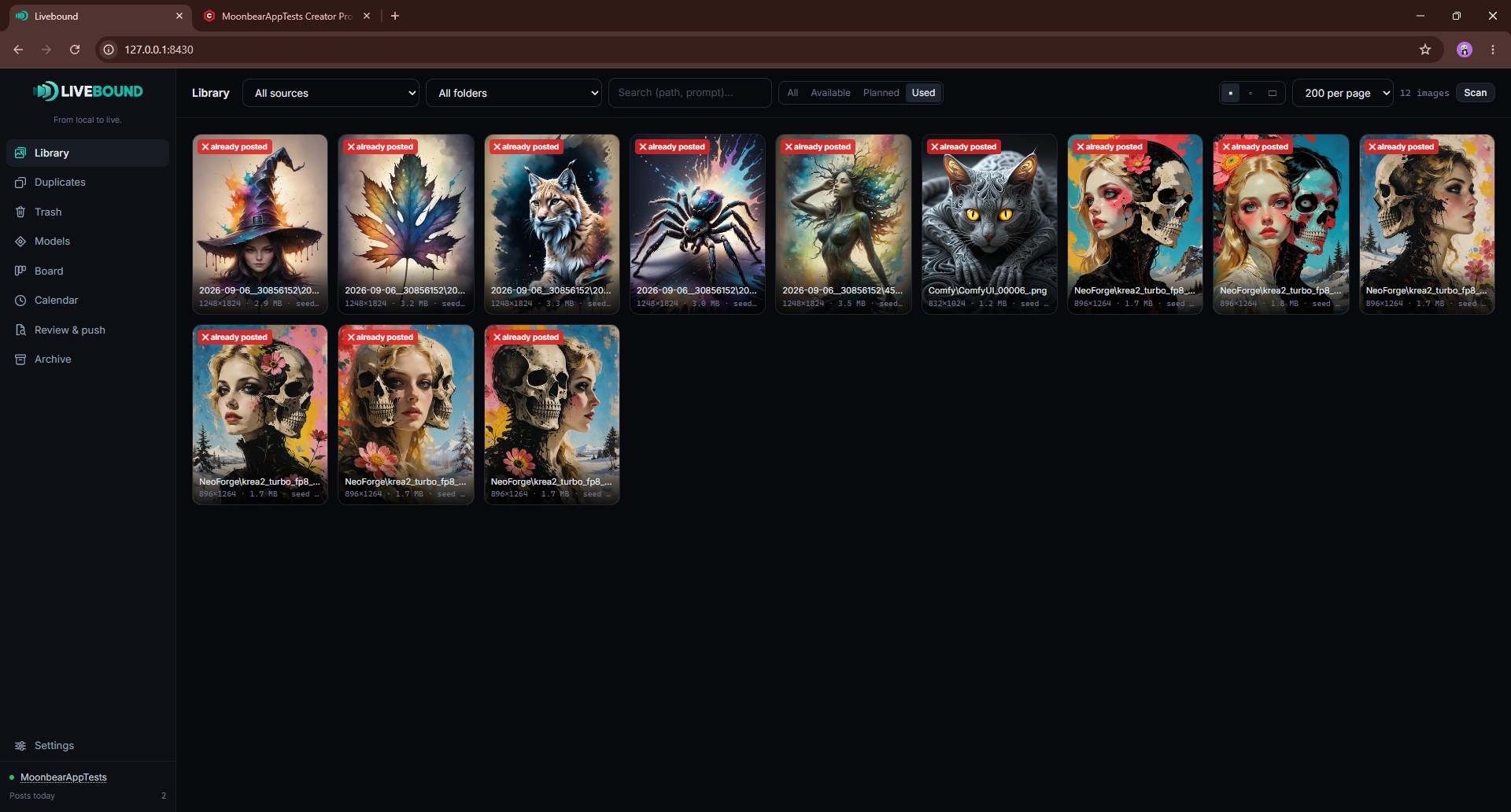
Library search covers the recorded relative path and generation infotext. Filters can narrow the view by source, folder, and usage state.
Duplicate groups are presented together so repeated files do not overwhelm the normal grid.
Selecting images
Select one or more images to:
- create a post;
- review or edit metadata;
- apply bulk metadata changes;
- inspect models and other resources;
- work with duplicate actions where applicable.
An image that is already in a post
One image can appear in more than one post, and sometimes that is exactly what you want. Livebound does not prevent it. What it does is say so first: if your selection contains images a post already holds, creating a new post asks once and names those posts with their titles and current states, so you can tell a draft you are still building from something already published. Confirm and the post is created as usual.
Removing a source folder from Livebound
Removing a source in Settings removes Livebound’s records for that source. It does not delete the image files on disk. The confirmation dialog shows the database records that will be forgotten before the action runs.