
CivitAI Connection
Connect Livebound to your CivitAI account and understand the account actions it can perform.
Livebound connects to CivitAI with OAuth. There is no API key field and no secret to copy from CivitAI into the application.
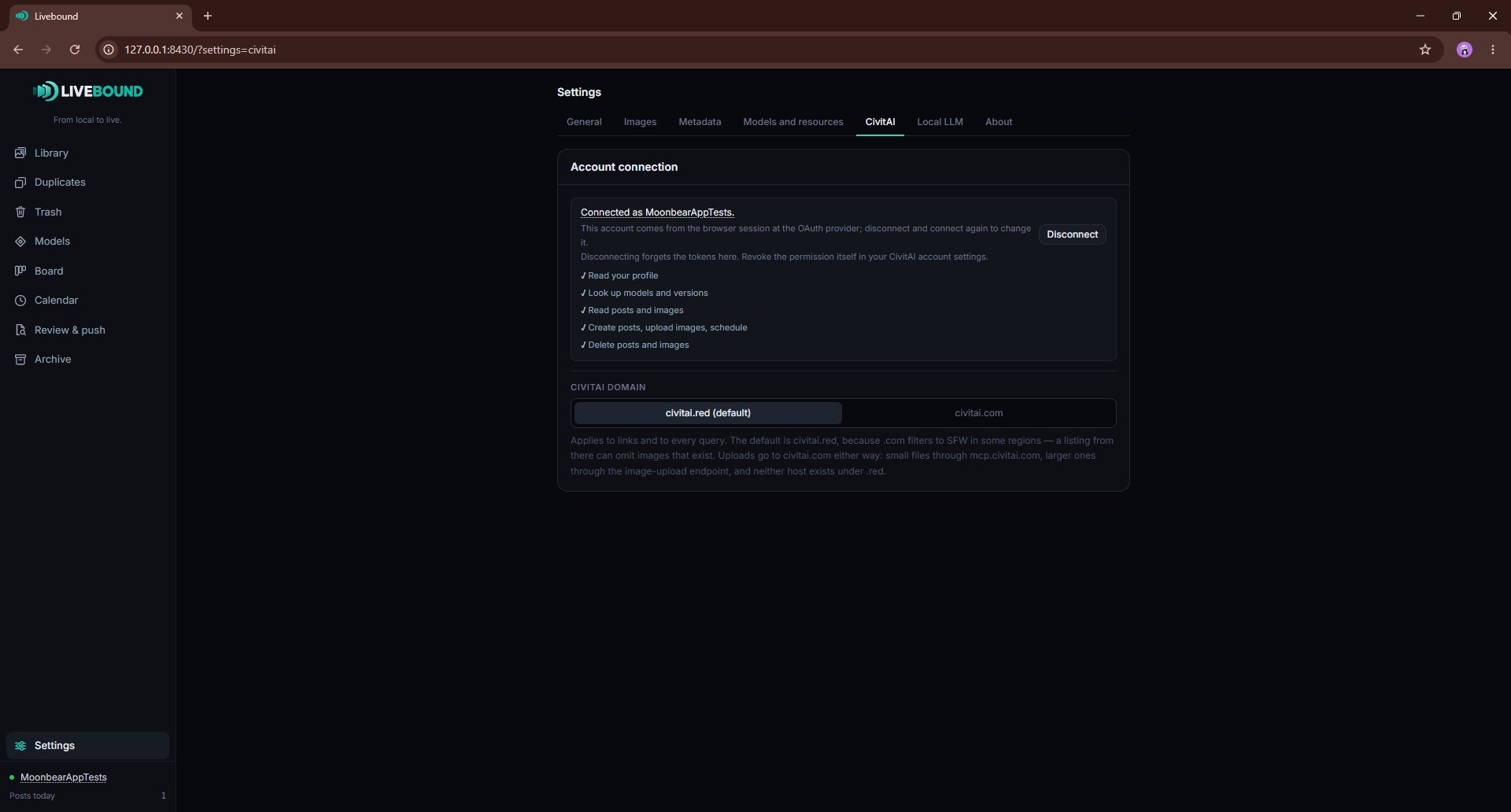
Connect
Open Settings → CivitAI and start the connection. Your browser opens CivitAI’s authorization flow; approve the requested access and return to Livebound.
Livebound requests the capabilities needed by its publishing workflow:
- read the connected user’s basic profile;
- look up models and model versions;
- read posts and media for sync/adoption;
- create and update posts/media;
- delete posts/media when you explicitly choose an operation that requires deletion.
The settings page shows which CivitAI account is connected. Check it before a publishing session if you use more than one CivitAI account in your browser.
Change account
Disconnect the current account in Livebound, then connect again and complete CivitAI’s authorization flow for the account you want to use.
A CivitAI website session and the authorization flow are separate browser interactions, so always verify the account Livebound reports after connecting.
Disconnect versus revoke
Disconnect removes Livebound’s locally stored OAuth connection.
If you also want CivitAI to revoke the application’s authorization, use CivitAI’s own authorized-app/account controls.
After restoring a Livebound backup
The OAuth connection is deliberately absent from database backups. Restore the backup first, then connect CivitAI again.
Remote authority
Livebound keeps local plans and cached remote facts, but CivitAI remains authoritative for whether a remote operation is accepted. Platform permissions, moderation, rate limits and API behaviour can change independently of Livebound.